
Custom Systems / Marketing
Which customer did this work belong to?
B41 built agency time tracking software for a marketing team moving between client accounts in the same tools. The system brings recorded activity and time added by staff into a daily report by customer.

Where customer context was missing
The earlier tracker showed time spent in an application or on a website. A specialist could work for several customers in the same browser, using the same tools each time. When the record lacked a customer identifier, those intervals could remain unassigned.
A manager could see where the computer time went and still lack the customer breakdown needed for a delivery review. A meeting away from the desk could appear as idle time. This was the gap B41 addressed in the existing tracker.
From a personal timer to team reports
B41 extended its original personal timer into custom time tracking software for marketing teams. Workers use a desktop app. Authorised managers use a browser dashboard, with scheduled daily reports for client time reporting.
The app records computer activity within configured work time. An administrator can link a known advertising account to a customer and map a campaign to a project when that relationship is known. A saved customer website can also identify a recorded visit. An account or website match may identify the customer while leaving the project unknown.
These are rules based on known customer information. Team members can maintain customer details and enter a meeting, call or other work away from the computer. They choose the customer and type of work. Added time counts immediately and appears as time added by hand.

A day in practice
Match a known account
An administrator links account NS-DEMO-01 to the fictional customer Northstar Studio. Alex opens that advertising account to check a campaign. The desktop app records the computer time; the saved mapping supplies the customer.
Add the meeting separately
After a meeting with the same customer, Alex opens Add time, enters 14:00–14:45, selects Meeting and chooses Northstar Studio. The entry contributes 45 minutes marked as added by hand. It works independently of the account match.
Review the daily report
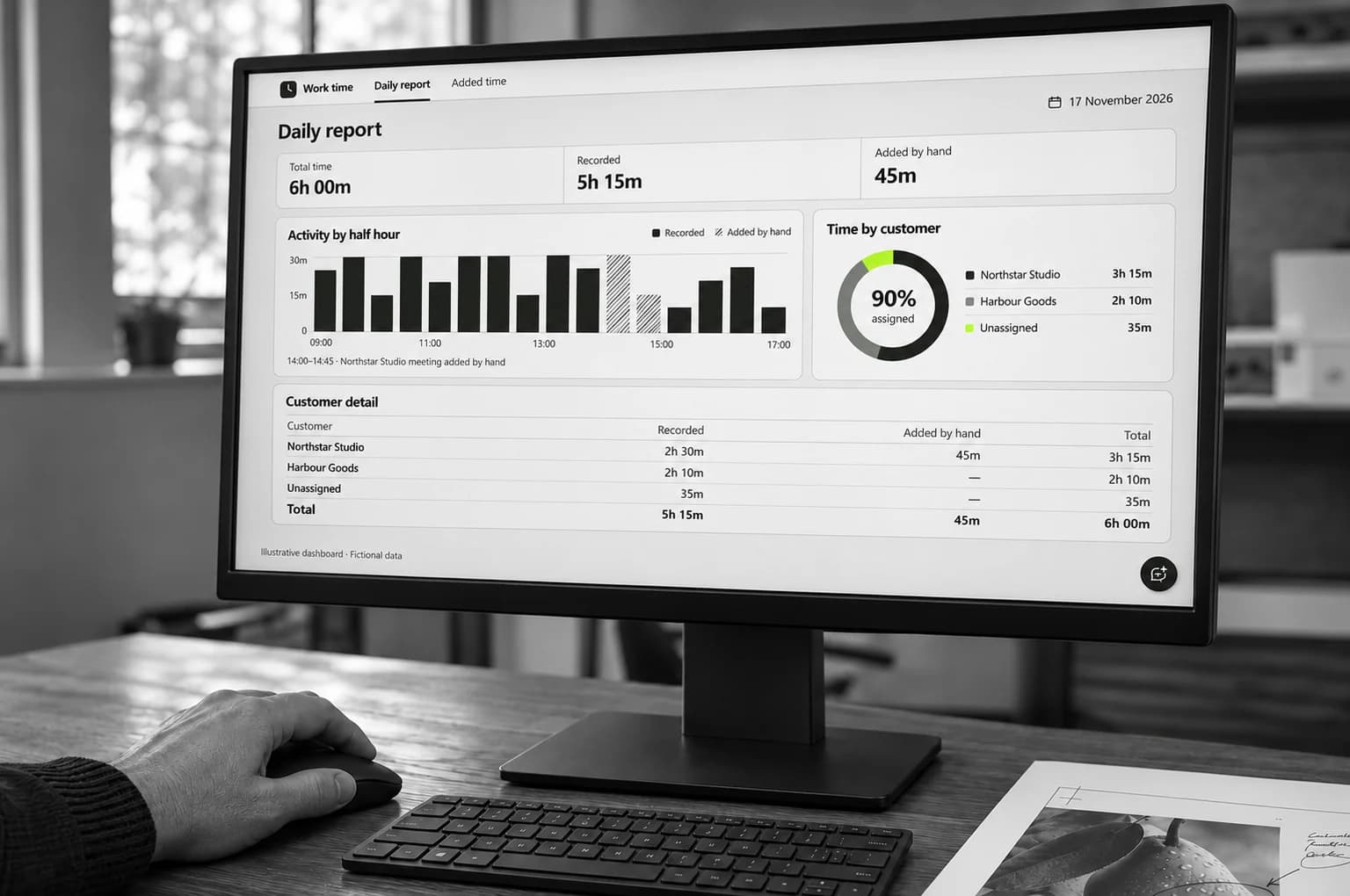
The manager sees Northstar Studio and Harbour Goods alongside unassigned activity in the daily report. In Added time, they can check or reject the meeting entry. These names and times illustrate the workflow. The accompanying image shows a proposed chart layout and assistant button.
What the manager can now check
An authorised manager can correct the customer or project on a recorded computer interval while its duration stays the same. If the customer is still unclear, the manager can leave the interval unassigned until there is enough information.
The daily report shows which recorded time was linked to a customer, which time staff added by hand and where an assignment is missing. That gives the delivery review a customer breakdown with the remaining gaps visible.
Start with one report
Bring one report your team needs to produce today. We can discuss what identifies the customer, how staff capture work away from the computer and who reviews gaps. That conversation can help define which parts of your existing setup to keep and where a similar workflow could start.